Windows
MD5, SHA checksums
:: SHA1 by default
certutil -hashfile filename
certutil -hashfile filename MD5
certutil -hashfile filename SHA512
# SHA256 by default
get-filehash filename
get-filehash -Algorithm MD5 filename
# print only hash
(get-filehash -Algorithm SHA512 filename).Hash
# Vergleich mit Prüfsummendatei im Format "Hash Dateiname"
# (z.B. https://dotnetcli.blob.core.windows.net/dotnet/checksums/8.0.0-sha.txt)
(Get-Content .\checksums.txt | Select-String "filename").Line -like (Get-FileHash .\filename -Algorithm SHA512).Hash + "*"
https://technastic.com/check-md5-checksum-hash/
Soft-/Hardlinks (NTFS)
:: Symbolic link (regular link)
mklink "Target link file" "Source file"
mklink /d "Target link folder" "Source folder"
:: Hardlink (appears as normal file, but content is synced)
mklink /h "Target link file" "Source file"
:: Junction (folder appears as being in both places)
mklink /j "Target link folder" "Source folder"
# Naming of parameters is from the eyes of the link
New-Item -ItemType SymbolicLink -Path "Target link" -Target "Source file/folder"
New-Item -ItemType Hardlink -Path "Target link" -Target "Source file"
New-Item -ItemType Junction -Path "Target link" -Target "Source folder"
Deleting the source file/folder will invalidate all links. Deleting the link will not remove the source file (even in the case of hardlinks/junctions).
Fenster off screen
- Windows + Linke/Rechte Pfeiltaste (Verschiebt Fenster in linke/rechte Bildschirmhälfte)
Manchmal hilft dies nicht, dann aber das Folgende:
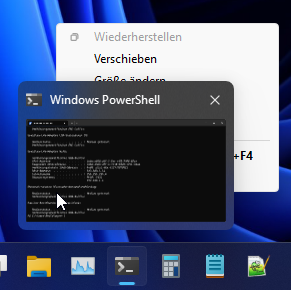
- Maus eine kurze Zeit über Icon auf der Taskleiste halten -> Rechtsklick auf die Fenster-Vorschau (nicht das Icon in der Taskleiste)
- Klick auf Verschieben
- Eine Pfeiltaste drücken
- Maus bewegen -> Fenster klebt an der Maus
Reboot to bios
In Admin cmd:
shutdown /r /fw /t 0
Show WiFi Password
netsh wlan show profile "Your WiFi SSID here" key=clear
netsh wlan show profile "Your WiFi SSID here" key=clear | findstr Schlüsselinhalt
netsh wlan show profile "Your WiFi SSID here" key=clear | findstr /C:"Key Content"
Useful Paths
Batch#Useful Windows variables
Icons for Filelinks
- C:\Windows\System32\shell32.dll
- C:\Windows\System32\imageres.dll
- C:\Windows\System32\pifmgr.dll
- C:\Windows\System32\wmploc.dll
- C:\Windows\System32\moricons.dll
- C:\Windows\System32\mmres.dll
- C:\Windows\System32\wpdshext.dll
- C:\Windows\System32\DDORes.dll
- C:\Windows\System32\IEframe.dll
- C:\Windows\System32\networkexplorer.dll
- C:\Windows\Explorer.exe
- C:\Windows\System32\accessibilitycpl.dll
- C:\Windows\System32\mmcndmgr.dll
- C:\Program Files (x86)\Internet Explorer\iexplore.exe
- C:\Program Files\Windows NT\Accessories\wordpad.exe
Portable Programme in Startmenü Suche
- Indizierungsoptionen aufrufen (am Einfachsten über die Suche)
- Ändern > Überordner der Portable Programme hinzufügen
- OK > Schließen
- Sobald Indizierung abgeschlossen ist, findet die Suche im Startmenü auch die portable exe Dateien in den Ordnern
Dies scheint nicht mit dem Ordner %userprofile%\AppData\Local\Programs zu funktionieren. AppData ist standardmäßig von der Indizierung ausgeschlossen, aber selbst wenn man ihn manuell wieder aktiviert, findet die Suche Portable Apps in diesem Ordner nicht.
-> Empfehlung: Portable Apps in C:\tools\ (o.ä.) platzieren
Alte Programme aus Suche entfernen
Wenn alte, längst deinstallierte Verknüpfungen und Programme in der Startmenü Suche angezeigt werden, ist ein veralteter Suchindex dafür verantwortlich.
- Indizierungsoptionen aufrufen
- Erweitert > Tab "Indexeinstellungen" > Gruppe "Problembehandlung" > Button "Neu erstellen" klicken
- Der Suchindex wird damit komplett gelöscht und neu erstellt (dies kann einige Minuten dauern).
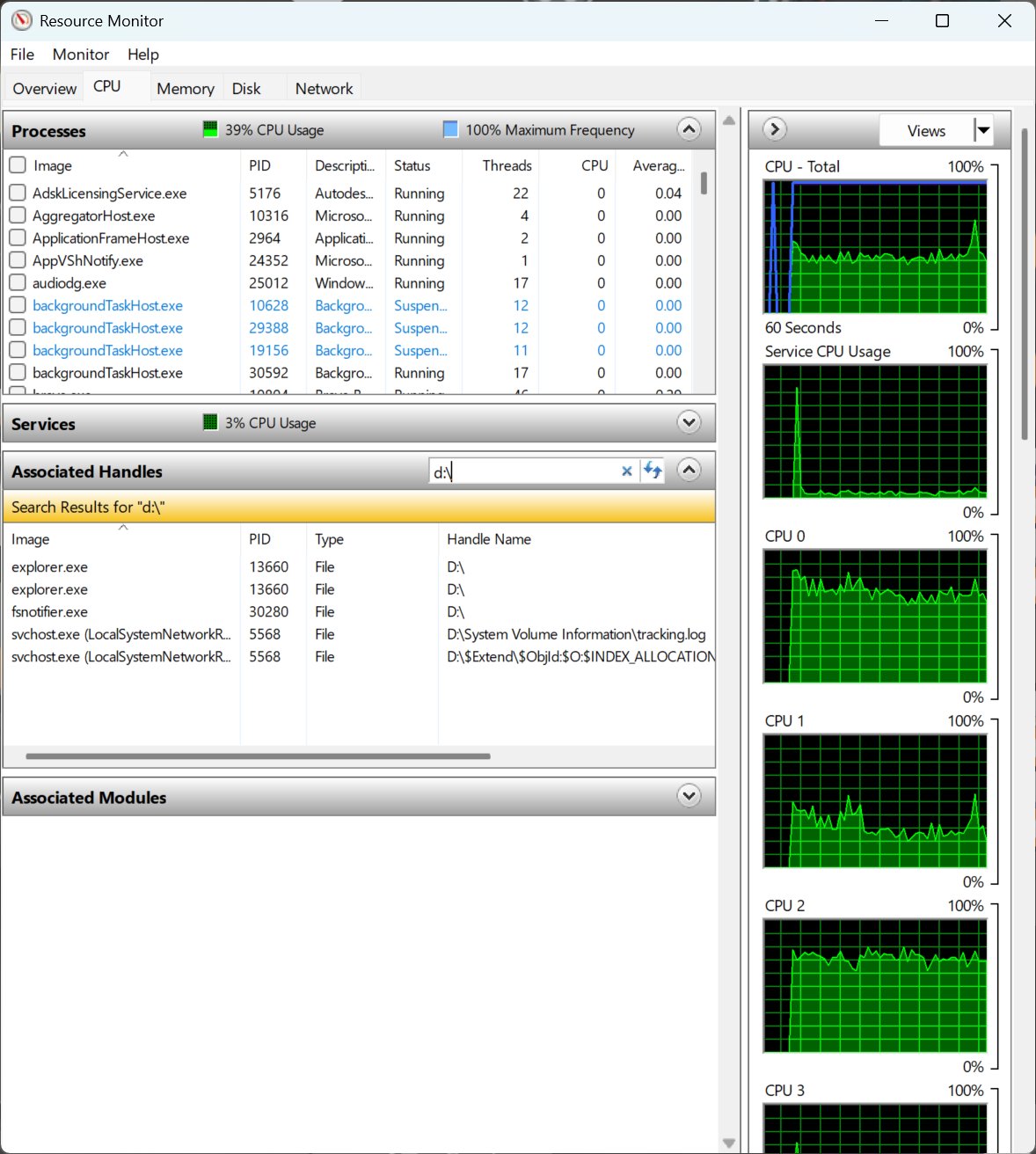
Herausfinden, welches Programm Löschen oder Schließen verhindert
Ressourcenmonitor > CPU Tab > Zugeordnete Handles nach Datei oder Pfad durchsuchen
Alte Programme finden Schriftarten nicht
- Schriftarten werden by default unter Windows 10/11 nur für den Benutzer unter
%userprofile%\AppData\Local\Microsoft\Windows\Fontsinstalliert - Alte Programme listen nur Schriftarten auf, welche unter
C:\Windows\Fontsinstalliert sind - Lösung: Rechtsklick auf Schriftart ->
Für alle Benutzer installieren
Take Ownership
Super nützliche Erweiterung für das Kontextmenü. Klick auf jede Datei oder Ordner erlaubt es den Besitzer zum aktuellen Benutzer zu ändern. Damit kann man in Folge Dateien anderer Benutzer oder Systemdateien einfach löschen (wie z.B. C:\Windows\SystemApps\ParentalControls_..., um das nervige Family Safety Popup nach jedem Login loszuwerden).
Man kann damit auch viel kaputt machen, also entsprechend mit Vorsicht behandeln.
Quelle: https://www.tenforums.com/tutorials/3841-add-take-ownership-context-menu-windows-10-a.html (für Win10, funktioniert auch in Win11 - verschiedene Varianten für das einfache oder erweiterte Kontextmenü und mit oder ohne Konsolenausgabe).
Hier das Skript für das erweitere Kontextmenü (Shift + Rechtsklick) und mit pause am Ende, damit man das Ergebnis begutachten kann.
Als .reg Datei abspeichern und ausführen.
Windows Registry Editor Version 5.00

; Created by: Shawn Brink
; Created on: January 28, 2015
; Updated on: February 25, 2024
; Tutorial: https://www.tenforums.com/tutorials/3841-add-take-ownership-context-menu-windows-10-a.html


[-HKEY_CLASSES_ROOT\*\shell\TakeOwnership]
[-HKEY_CLASSES_ROOT\*\shell\runas]

[HKEY_CLASSES_ROOT\*\shell\TakeOwnership]
@="Take Ownership"
"Extended"=""
"HasLUAShield"=""
"NoWorkingDirectory"=""
"NeverDefault"=""

[HKEY_CLASSES_ROOT\*\shell\TakeOwnership\command]
@="powershell -windowstyle hidden -command \"Start-Process cmd -ArgumentList '/c takeown /f \\\"%1\\\" && icacls \\\"%1\\\" /grant *S-1-3-4:F /t /c /l & pause' -Verb runAs\""
"IsolatedCommand"= "powershell -windowstyle hidden -command \"Start-Process cmd -ArgumentList '/c takeown /f \\\"%1\\\" && icacls \\\"%1\\\" /grant *S-1-3-4:F /t /c /l & pause' -Verb runAs\""


[HKEY_CLASSES_ROOT\Directory\shell\TakeOwnership]
@="Take Ownership"
"AppliesTo"="NOT (System.ItemPathDisplay:=\"C:\\Users\" OR System.ItemPathDisplay:=\"C:\\ProgramData\" OR System.ItemPathDisplay:=\"C:\\Windows\" OR System.ItemPathDisplay:=\"C:\\Windows\\System32\" OR System.ItemPathDisplay:=\"C:\\Program Files\" OR System.ItemPathDisplay:=\"C:\\Program Files (x86)\")"
"Extended"=""
"HasLUAShield"=""
"NoWorkingDirectory"=""
"Position"="middle"

[HKEY_CLASSES_ROOT\Directory\shell\TakeOwnership\command]
@="powershell -windowstyle hidden -command \"$Y = ($null | choice).Substring(1,1); Start-Process cmd -ArgumentList ('/c takeown /f \\\"%1\\\" /r /d ' + $Y + ' && icacls \\\"%1\\\" /grant *S-1-3-4:F /t /c /l /q & pause') -Verb runAs\""
"IsolatedCommand"="powershell -windowstyle hidden -command \"$Y = ($null | choice).Substring(1,1); Start-Process cmd -ArgumentList ('/c takeown /f \\\"%1\\\" /r /d ' + $Y + ' && icacls \\\"%1\\\" /grant *S-1-3-4:F /t /c /l /q & pause') -Verb runAs\""


[HKEY_CLASSES_ROOT\Drive\shell\runas]
@="Take Ownership"
"Extended"=""
"HasLUAShield"=""
"NoWorkingDirectory"=""
"Position"="middle"
"AppliesTo"="NOT (System.ItemPathDisplay:=\"C:\\\")"

[HKEY_CLASSES_ROOT\Drive\shell\runas\command]
@="cmd.exe /c takeown /f \"%1\\\" /r /d y && icacls \"%1\\\" /grant *S-1-3-4:F /t /c & Pause"
"IsolatedCommand"="cmd.exe /c takeown /f \"%1\\\" /r /d y && icacls \"%1\\\" /grant *S-1-3-4:F /t /c & Pause"
Zum Entfernen:
Windows Registry Editor Version 5.00

; Created by: Shawn Brink
; Created on: January 28, 2015
; Updated on: January 11, 2021
; Tutorial: https://www.tenforums.com/tutorials/3841-add-take-ownership-context-menu-windows-10-a.html


[-HKEY_CLASSES_ROOT\*\shell\TakeOwnership]

[-HKEY_CLASSES_ROOT\*\shell\runas]

[-HKEY_CLASSES_ROOT\Directory\shell\TakeOwnership]

[-HKEY_CLASSES_ROOT\Drive\shell\runas]
Microsoft Family Safety deaktivieren
Dienst "Jugendschutz" beenden und deaktivieren.
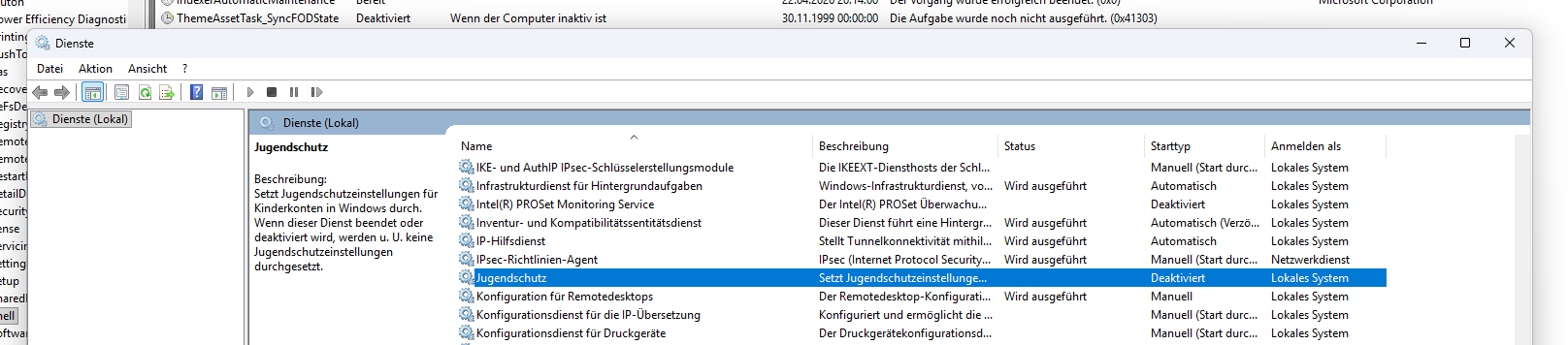
Aufgabenplanung -> Microsoft/Windows/Shell -> Die 3 FamilySafety* Aufgaben deaktivieren

grep
Search for the text foo bar in the output of some-cmd:
some-cmd | Select-String "foo bar"
some-cmd | sls "foo bar"
some-cmd | findstr /C:"foo bar"
Select-String is NOT case-senstive by default, but findstr is.
You can pass -CaseSensitive to Select-String and you can pass /I to findstr to make it case-insensitive.
Access and delete PowerShell history
History is saved in a plain text file at the following location:
(Get-PSReadlineOption).HistorySavePath
(prints something like C:\Users\<USERNAME>\AppData\Roaming\Microsoft\Windows\PowerShell\PSReadLine\ConsoleHost_history.txt)
You can edit or delete this file.